


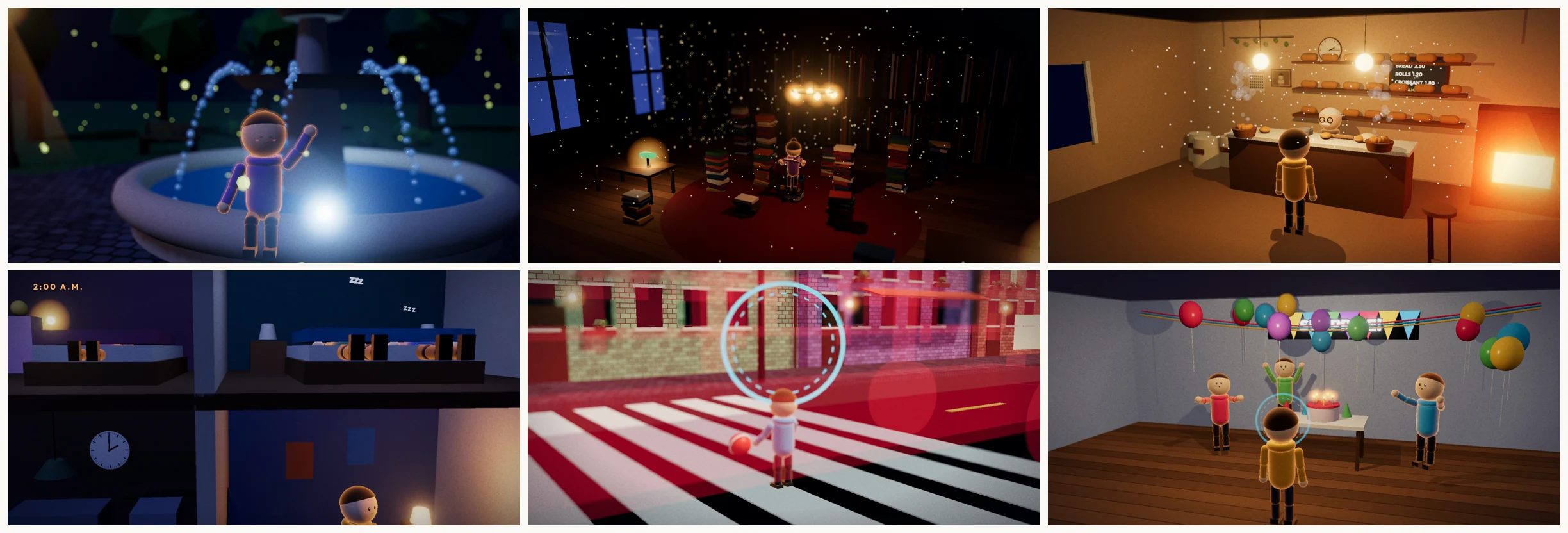
Hi, this is Darius. The three videos below are 3D animated “What If” stories. I didn’t open After Effects, Blender or any Adobe app to make them. Claude Code built the worlds, the characters, the camera moves and the sound effects from a voiceover and a handful of prompts. A MiniMax voice did the narration.
This guide shows you how to make AI animated videos the same way, step by step. Every prompt I used is in this article, ready to copy.
Why AI animated videos are blowing up right now
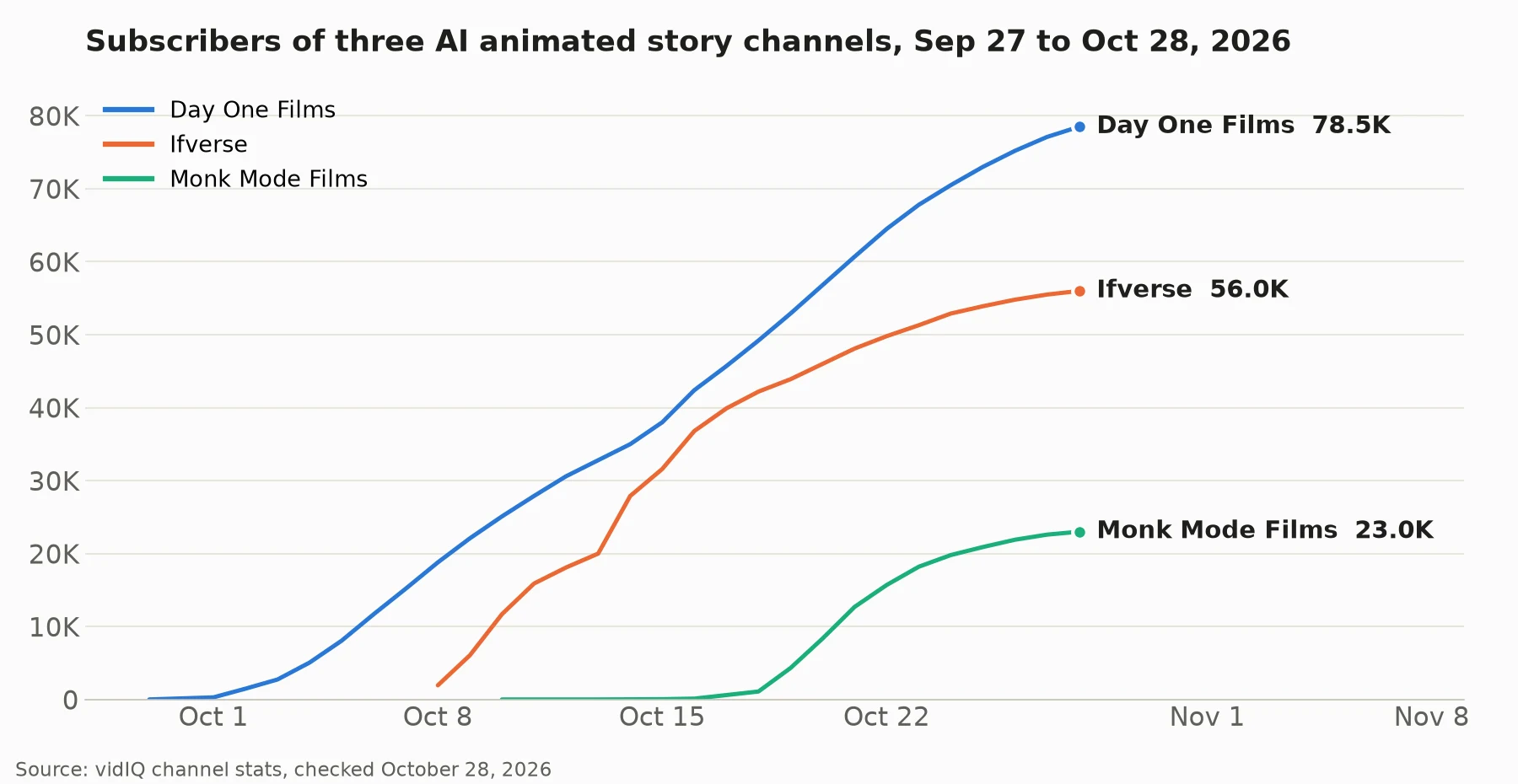
A new kind of channel is growing fast on YouTube: short animated stories with simple characters, told by a narrator who speaks to “you”. Nobody appears on camera and nothing is filmed. I pulled these numbers for three of them from vidIQ on October 28, 2026.
- Ifverse makes “What If” stories like “What If You Had 500 IQ?”. It has 56,000 subscribers and 8.8 million views from 23 videos, and almost all of that came in the last three weeks. Its biggest video, “What If Your Reaction Time Was 10x Faster?”, has 4.6 million views.
- Day One Films started on September 27, 2026. One month later it has 78,500 subscribers and 9.5 million views from 16 videos. “DISCIPLINE” alone has 5.4 million views.
- Monk Mode Films started on October 7, 2026. Three weeks later it has 23,000 subscribers and 4.4 million views. “LUST VS LOVE” has 2.2 million views.
As for money, vidIQ estimates that Ifverse’s 7 minute video with 4.6 million views earned between $12,450 and $33,200 from ads. That’s an estimate, not a payout, and a channel only earns ad money once it’s in the YouTube Partner Program.
What you need (and what it costs)
You don’t need After Effects, Premiere, Blender or any Adobe subscription. Everything runs inside Claude Code.
- A Claude plan. Claude Code comes with every paid plan, and Pro costs $20 a month ($17 a month if you pay yearly). Pro is enough for this whole workflow.
- A voice, which is optional. You can record your own voice for free. If you’d rather use an AI voice, MiniMax, ElevenLabs and Google AI Studio all work. ElevenLabs’ free plan gives you 10,000 credits a month, but it’s for personal, non-commercial use, so you need a paid plan for a monetized channel.
If you record your own voice, the $20 Claude plan is the only cost.
The tools Claude installs for you
You don’t have to install these by hand to make AI animated videos. Prompt 1 below does it for you. Here’s what each one does:
- Claude Code is the AI that writes and runs everything, from the 3D scenes to the final render.
- HyperFrames turns web pages into video, frame by frame (74,600 GitHub stars, Apache-2.0).
- Three.js draws the 3D worlds, characters, lights and camera in the browser (117,000 stars, MIT).
- GSAP times every movement so each one lands on the right word.
- FFmpeg cuts, joins and encodes the video and audio files.
- yt-dlp downloads the reference video you want to learn from (203,000 stars).
- WhisperX writes down every word of your voiceover with its exact time (24,900 stars).
- PySceneDetect and OpenCV find every cut in the reference video.
- EasyOCR reads the text that appears on screen in the reference.
- vidIQ researches YouTube channels, ideas and titles from inside Claude Code.
- Humanizer rewrites your script so it doesn’t sound like AI (61,900 stars, MIT).
- opus-sound-layer adds real sound effects from a library of 1,139 free CC0 sounds and checks they line up with the picture (MIT).
All the prompts are also in the description of my video, so you can follow along there too. At the end, one more prompt turns the whole workflow into a skill you can reuse.
Step 1: install everything with one prompt
Open Claude Code in an empty folder and paste prompt 1. It checks what you already have, installs only what’s missing, and renders a 5 second 3D test scene to prove it all works. If something needs you, like a password or a sign-in, it stops and tells you exactly what to click.
Prompt 1: install everything (copy all of it)
Set up this folder as a workspace for making animated 3D faceless videos with code. Install everything below, check each tool works, and render a short test video at the end.

Do every step you can yourself. Check what is already installed before installing anything, and don't reinstall what works. If you need me to do something (an admin password, a sign-in, a download only I can do), stop and give me short, simple, step-by-step instructions, then wait until I say I'm done.

**1. Base tools**
- Node.js 22 or newer, Python 3.11 or newer, git, and FFmpeg (with ffprobe).
- yt-dlp, to download the reference video for analysis.

**2. Video engine and 3D**
- HyperFrames (HTML rendered to video). Create the project with `npx hyperframes init`, then run `npx hyperframes check` until it passes.
- Install the HyperFrames skills for Claude Code with `npx hyperframes skills update`.
- Three.js for the 3D scenes, with its GLTF loader so it can load 3D models.
- GSAP for the animation timelines.

**3. Analysis tools (for the reference breakdown)**
- Shot and cut detection: OpenCV and PySceneDetect.
- Word-level transcription: WhisperX (or faster-whisper with word timestamps).
- On-screen text reading (OCR): EasyOCR or Tesseract.
- Audio measurement: librosa and pyloudnorm.
- Contact sheets and frame grids: Pillow.
- Put the Python tools in a virtual environment inside this project, not system-wide.

**4. Assets**
- Make folders for `assets/models`, `assets/characters`, `assets/sfx`, `assets/music` and `assets/voice`.
- Use only free assets I can use commercially. Prefer CC0 3D models (for example Kenney or Poly Pizza) and CC0 sound effects. Keep a `CREDITS.md` with every asset's source, author and license.
- Rigged, animated characters: Mixamo needs a free Adobe sign-in, so give me the steps to download what you need and tell me where to put the files.

**4b. Claude Code add-ons**
- vidIQ for YouTube research: run `claude mcp add --transport http vidiq https://mcp.vidiq.com/mcp`, then tell me to run `/mcp` and sign in with my vidIQ account (the free plan works).
- The Humanizer skill (github.com/blader/humanizer) for rewriting scripts so they don't sound like AI: `claude plugin marketplace add blader/humanizer` then `claude plugin install humanizer@humanizer`.
- Sound effects: clone github.com/Bodila51/opus-sound-layer into this folder, install `uv`, and build its sound library with `uv run scripts/sfx.py kit` (runs in the background, about 300 MB).

**5. Voice**
- I record the narration myself or use a text-to-speech voice. Set up `assets/voice/` and a script that turns the voice file into word timestamps (`words.json`) with WhisperX.

**6. Test it**
- Build a 5-second 3D test scene in HyperFrames: a small Three.js world with a model, a light, a slow camera move, and one object that animates in on a word from a short test voice clip.
- Render it to MP4 at 1920×1080, 30 fps, and show me a frame from the start, middle and end.

**7. Report**
- Give me a short table: each tool, its installed version, and pass/fail.
- Write a `SETUP.md` in the folder with the same list and the commands to start a new video, so I can redo this on another computer.
Step 2: break down a reference video
This is where the style of your AI animated videos comes from. Find a video you like on YouTube, copy its link, and paste it into prompt 2 where it says LINK HERE. You don’t have to do anything else.
Claude downloads the video and goes through it frame by frame with sound. It measures every cut, every camera move, how long each shot lasts, how the text appears and how often something new happens on screen. Then it writes two files: an analysis with all the evidence, and a methodology, which is the rulebook it will follow when it makes your videos.
Along the way it asks you to approve a few choices. When I broke down an Ifverse video, it found that the “3D” look was actually flat 2D art with camera tricks, and it asked me whether I wanted that look or real 3D. I chose real 3D. Once you approve the breakdown and a short test, your engine is ready.
Prompt 2: break down a reference video (copy all of it)
Watch and analyze this reference video frame by frame: LINK HERE

Run the full frame-by-frame breakdown. Watch it with sound, build a time-coded shot list, and inspect the frames immediately before, during and after every visual change. Do every step you can yourself. If you need me to do something, give me short, simple, step-by-step instructions and wait until I finish.

**1. Get the source**
- Download the video and save its info (title, channel, upload date, views, length, resolution, fps).
- Extract the audio, every frame at half size, the first 10 seconds at full size, and a 1-frame-per-second contact sheet.

**2. Map the whole video**
- Map the full length at 2 fps and label every shot by type (wide set, close-up, character, prop insert, diagram, data card, text card, transition).
- Run an automatic shot/layout classifier, then check its output against the frames by eye and fix what it got wrong.

**3. Cuts and camera**
- Find every instant visual change. Check a before/after pair for each one by eye.
- Separate a hard cut to a new shot from a camera move inside the same shot (push-in, pull-out, pan, orbit, dolly).
- Measure every camera move: start and end time, duration, scale change (for example 0.8 s, ×1.095), direction, and easing.
- Record shot lengths: median, shortest, longest, and how they change between hook, body and ending.

**4. Motion in seconds 0–10**
- Inspect every object, character, icon and text movement in seconds 0–10: where it enters from (left, right, top, bottom, depth), how long it takes, how far it moves, how much it scales, how long it stays, how it leaves, and its easing.
- Note 3D details: camera lens and angle, lighting and shadows, materials, depth of field, how characters are animated (walk, idle, gesture), and what moves in the background while nothing else happens.

**5. Sync to the voice**
- Transcribe the narration with word-level timestamps.
- For every cut and every new object, find the first spoken word of that beat and check that the visual starts on that word's audible onset. Report the offset in milliseconds.
- Mark where beats start: at sentence starts, or mid-sentence on the noun the next shot shows.

**6. On-screen text**
- Read all on-screen text (OCR): labels, numbers, titles, captions. Record when each appears and disappears, its position, size, style and animation.

**7. Motion density (graphics never land and sit)**
- Measure how much of the time something on screen is moving, how many new visual events start per second, the median gap between events, and the longest stretch where nothing new happens.
- List every moment where the picture lands and waits while the narrator keeps talking, and what the video does instead to keep it alive (slow camera drift, ambient loops, background life, the next action starting before the last one settles).
- Describe how one idea grows out of the last one (morphs, camera flying to the next place, objects transforming) instead of the screen emptying and rebuilding.

**8. Sound**
- Measure loudness, music level under the voice, and every sound effect hit: its time, its type (whoosh, pop, impact, riser, ambience), and which visual it belongs to.

**9. Write it up**
- **ANALYSIS.md**: the evidence. Source facts, how each thing was measured, the shot list, camera measurements, the 0–10 s motion inventory, sync offsets, text, density numbers and sound, with links to the contact sheets and data files.
- **METHODOLOGY.md**: a short, deterministic editing method I can reuse: clear if/then rules for beats, cuts, shot types, camera patterns, motion presets, word-anchored timing, on-screen text and sound; density targets taken from the measured numbers (the new video must match or beat them, with no stretch where the graphics land and sit); and a final QA checklist to run before every render.
- If ANALYSIS.md and METHODOLOGY.md already exist, add the new patterns as new sections and keep what is already there.

**10. Then replicate it**
- Confirm the setup from the tools prompt still works: render the test scene again.
- Wait for my OK on the breakdown. Then rebuild this style for my video with my own story and information, following METHODOLOGY.md. Use your own characters, sets and assets, not the reference's.
Step 3: find video ideas with vidIQ
Prompt 1 already connected vidIQ. If you skipped that, run this in your terminal, then type /mcp in Claude Code and sign in with your vidIQ account (the free plan works):
claude mcp add --transport http vidiq https://mcp.vidiq.com/mcpPrompt 3 pulls the numbers for channels like Ifverse, Monk Mode Films and Day One Films, works out which title shapes get the most views, and gives you 20 ideas of your own, ranked by vidIQ’s score. Pick one.
Prompt 3: video ideas with vidIQ (copy all of it)
Use vidIQ to research faceless animated "What If" story channels on YouTube, such as Ifverse, Monk Mode Films and Day One Films, plus any similar channels vidIQ finds.

1. For each channel, pull subscribers, total views, how fast it grew in the last 30 days, and its 10 most-viewed videos with their titles and view counts.
2. Find the patterns in the titles that get the most views: the shape of the sentence, the length, numbers, the type of "what if", and which topics repeat.
3. Give me 20 new video ideas for my channel. Each idea is a title plus one line on the story. They must be my own stories, not copies or remixes of theirs.
4. Score each title with vidIQ and sort the list from best to worst.

Stop and let me pick one before you write anything else.
Step 4: write a script that doesn’t sound like AI
AI scripts give themselves away with the same tricks: “Imagine a world where…”, “but here’s the thing”, “it’s not just X, it’s Y”. Prompt 4 bans those, keeps the sentences short and plain, and asks for a story you can actually show on screen, with real places and objects in every line. It returns plain text with no labels, so you can paste it straight into your voice tool.
Prompt 4: the script (copy all of it)
Write a 1-minute narration script for the title I picked: [TITLE].

- About 130–150 words. It must read as one voice, a narrator who speaks to "you".
- Open on a concrete moment the viewer can see, not a question or a big statement.
- Short sentences. Plain, everyday words. Use dialogue between characters and give each line its own sentence.
- One clear turn in the middle, where the power or the situation starts to cost something.
- End on a quiet, personal moment, then one final question to the viewer.
- Every sentence must be something I can show on screen. Name places and objects.
- Don't use: "Imagine", "In a world where", "little did you know", "but here's the thing", "it's not just X, it's Y", "let that sink in", or any closing line that explains the moral.
- Give me plain text only, with no labels, speaker tags or stage directions, so I can paste it straight into a voice tool.
Step 5: humanize the script
Next, run the script through the Humanizer skill by blader. It’s built on Wikipedia’s “Signs of AI writing” guide, the list editors use to spot AI text, and it checks for 26 patterns. Prompt 1 installs it for you. To install it yourself, type these two commands in Claude Code:
/plugin marketplace add blader/humanizer
/plugin install humanizer@humanizer
That needs Claude Code 2.1.142 or newer. On an older version, run this in your terminal instead:
npx skills add blader/humanizer --global --agent claude-codeYou can also make it better over time. The second half of prompt 5 has Claude compare Humanizer with the newest lists of AI writing tells, show you what it misses, and add the ones you approve.
Prompt 5: humanize the script (copy all of it)
Run the script through the humanizer skill. Fix every sign of AI writing it finds, then show me the final script and a short list of what changed.

**To make the humanizer better over time:**
Read Wikipedia's "Signs of AI writing" page and other recent lists of AI writing tells. Compare them with the patterns already in the humanizer skill. Show me the tells it doesn't cover yet, with one example each, and add the ones I approve to the skill.
Step 6: make the voiceover
Paste your script into a voice tool and download the audio. I used MiniMax for my three videos, and it has good narrator voices. ElevenLabs and Google AI Studio work too, or you can record your own voice for free. Save the file somewhere easy to find.
Step 7: turn the voiceover into a video
Upload the voiceover to Claude Code with prompt 6. Claude already knows your style from step 2, but the world has to come from your script. So before it builds anything, it lists every place and object your script names, then creates those places, new ones where the story needs them, and fills them with detail and visual effects.
In my first try, Claude reused the same rainy town for every video. Once I told it to build each world from the script, the bakery story got a bakery, the crosswalk story got a city with a bus, and the frozen-time story got a frozen fountain.
Prompt 6: build the video from your voiceover (copy all of it)
Here is my voiceover: [voiceover.wav]. Build the video in the style we set up from the reference.

1. Transcribe the voiceover into word timings.
2. Make a shot list from the words. Each new line or idea gets a new shot, the cut lands just before its first word, and the camera moves in every shot.
3. Build new worlds from this script. Before you build, list every place and object each line names. Create those places, and new worlds where the script needs them, so that every visual matches what is being said. Don't reuse the reference's world or any earlier video's world unless the script asks for it.
4. Fill every world with high-quality detail so it never looks empty or boring: furniture and props, set dressing, textures, background life, and lighting that sets the mood.
5. Add visual effects: light beams, floating dust, glows, particles, and an effect for the story's main idea. Characters react on the words that carry emotion with blinks, expressions and gestures.
6. Add chapter labels and the end-card question the way the reference does.
7. Check every shot by eye, render a draft, run the motion check, and show me a contact sheet of every shot before you call it done.
Step 8: fix and improve the video
Your first render won’t be perfect, and that’s normal. Watch it, write down what feels off, and give Claude your notes with prompt 7. It goes through the video shot by shot like a master 3D motion designer. It can change a scene, add or remove elements, rebuild a world or switch the color theme, and it shows you a before and after of every change.
Repeat this step until you like the result. Your notes are what make the video look like yours and not like everyone else’s. It also doesn’t have to be perfect. These are simple characters in simple worlds, and the viewer’s imagination fills in a lot, the same way it does with any animated story.
Prompt 7: fix and improve (copy all of it)
Look at this video like a master 3D motion designer. Go through it shot by shot and make it better:

- Make sure every visual matches what the voice says at that moment.
- Fix anything empty, dark, blocked, cut off or hard to read.
- Add more detail and life to the worlds, and better visual effects where they help the story.
- If it helps, change the color theme or the look of a world.
- Here are my notes: [YOUR NOTES, e.g. "the bedroom is too dark", "make the rain only in the rain shot", "make the city busier"].

Show me a before and after contact sheet of the shots you changed, then render again.
Step 9: add sound effects
Prompt 8 uses opus-sound-layer to add sound effects. Claude can’t hear, so this tool lets it pick each sound by looking at its waveform, places it on the exact frame the picture moves, mixes it under your voice and runs a check on the result. It also gives you 5 timecodes to listen to yourself.
Prompt 8: sound effects (copy all of it)
Add sound effects with the opus-sound-layer repo in this folder. Read its PROMPT.md and follow it.

Place the sounds from the video's own timing: cuts, character moves, things appearing, and the big moments. Pick every sound yourself from the kit, and keep one sound family for the whole video. Mix them with my voiceover, run its QA check, and give me the final MP4 plus 5 timecodes I should listen to.
Want more video tools? See my list of Claude video editing skills.
Step 10: write the title, description and thumbnail ideas
When you’re happy with the video, prompt 9 writes your YouTube assets: 10 titles scored with vidIQ, a short description that doesn’t spoil the story, tags, 5 options for thumbnail text and 5 thumbnail ideas based on your title.
Prompt 9: YouTube assets (copy all of it)
The video is done. Write the YouTube assets for it:

1. 10 titles: 5 that follow the "What If…?" shape of the top channels and 5 alternatives. Score them with vidIQ and mark your top 3.
2. A short description of 2–3 sentences that makes people curious without spoiling the story or the ending.
3. Tags: 15–20, ordered from most to least relevant.
4. Thumbnail text: 5 options of 1–4 words each, different from the title.
5. 5 thumbnail ideas based on the title. For each one: the main image, the character's expression, the colors, and where the text goes.
Step 11: turn it into a skill
Once you have a video you love, you don’t need to repeat all ten steps by hand. Prompt 10 turns the whole workflow into a Claude Code skill. It packs in the style from your reference, the 3D kit, and every fix you asked for along the way, written as rules so you never have to ask again.
Next time, you give it a video idea. It finds ideas with vidIQ, writes and humanizes the script, builds the video from your voiceover, adds the sound effects and writes the YouTube assets, the same way as before. It still stops for your OK after the ideas, the script and the first render, and you still make the voiceover yourself.
Here’s how to make the skill:
- Install skill-creator, the skill Anthropic made for building new skills. It comes from the anthropics/skills repo (184,000 GitHub stars). Type these two commands in Claude Code:
/plugin marketplace add anthropics/skills
/plugin install example-skills@anthropic-agent-skills- Restart Claude Code so the new skills load.
- Open the same project folder you made your video in, so Claude can see your reference breakdown, your 3D kit and the notes from your fixes. Paste prompt 10.
- Answer Claude’s questions. It writes the skill into
~/.claude/skills/3d-story-video, then tests it on a new idea and shows you the result. - Next time, start a new chat and type
/3d-story-videofollowed by your idea, for example/3d-story-video What if you could hear people's thoughts?. Claude runs the whole workflow and stops for your OK at each step.
Prompt 10: turn it into a skill (copy all of it)
We now have a video I'm happy with. Turn this whole workflow into a Claude Code skill, so next time I only give you a video idea and you do the rest the same way.

1. Use the skill-creator skill from Anthropic (github.com/anthropics/skills). Name the new skill `3d-story-video` and save it in `~/.claude/skills/`.
2. Put everything we built and learned into it:
   - the steps in order: ideas with vidIQ, script, humanize, wait for my voiceover, build, fix, sound effects, YouTube assets;
   - the methodology and style files from the reference breakdown;
   - the 3D kit: world code, character rig, props, effects and the render settings;
   - every fix I asked for along the way, written as rules so I never have to ask again (for example, "build every world from the script" and "never reuse an old world").
3. Keep my approval stops: after the ideas, after the script, after the first render, and before the final export.
4. Test the skill on a new idea: run it up to the script, then build a short test from a voiceover I give you. Show me the result and anything you changed in the skill.Make it yours so it can earn
YouTube can still pay channels that post AI animated videos. Its rules ask for videos that are original and show your own perspective, not mass-produced copies from the same template. In July 2025 it renamed its “repetitious content” policy to “inauthentic content” to make that clearer. This workflow fits those rules well: your own story ideas, your own script, your voice or a voice you picked, and a world built new for every video. Keep it that way and don’t copy another channel’s stories.
More ideas for channels without a face: faceless YouTube with Claude and how to make money with Claude Code.
Frequently asked questions
Do I need to know how to code?
No. You paste the prompts and answer Claude’s questions in plain English. Claude writes and runs all the code.
How much does it cost to make AI animated videos with Claude Code?
The Claude Pro plan at $20 a month. Record your own voice and that’s the only cost. An AI voice service adds its own price if you need commercial rights.
How long does one video take?
The first time, set aside an afternoon for the install and the reference breakdown. After that, a one minute video takes a few hours, including the fixes.
Do I have to do all these steps for every video?
No. After your first good video, prompt 10 turns the workflow into a skill. From then on you give Claude a video idea and a voiceover, and it handles the rest with the same style and rules.
Is this real 3D?
Yes. Claude builds the worlds in Three.js with real lights, shadows, depth of field and camera moves, then HyperFrames records them frame by frame.
Can I make long videos too?
Yes. Write a longer script and the same steps work. Ifverse’s top videos run 6 to 9 minutes, and it also posts full movies of more than 20 minutes.
Final word
The tools in this guide are free apart from the Claude plan, and every prompt is above. Start with prompt 1, pick a reference video you like, and make your first AI animated video this week.